Tool Approval
Require human approval before sensitive tool actions execute, enabling human-in-the-loop workflows for AI agents
Tool Approval
Tool Approval adds a human-in-the-loop checkpoint to your AI agents. When enabled, the agent pauses before executing a tool and waits for explicit user confirmation. This gives users control over sensitive operations like database writes, payment processing, or external API calls.
Why Use Tool Approval?
AI agents are powerful, but some actions shouldn't happen automatically:
- Financial transactions — Transferring money, processing refunds, updating billing
- Data modifications — Deleting records, updating customer information, bulk changes
- External communications — Sending emails, posting to social media, triggering notifications
- Irreversible operations — Actions that can't be easily undone
Tool Approval ensures a human reviews the agent's intended action before it executes. The user sees exactly what the tool will do, including all parameters, and can approve or deny the request.
How It Works
- Agent decides to use a tool — Based on the conversation, the agent determines it needs to call a tool
- Approval request shown — Instead of executing immediately, the chat displays a confirmation dialog with the tool name and parameters
- User reviews and decides — The user can approve, deny, or modify the request
- Execution or cancellation — If approved, the tool runs normally. If denied, the agent receives feedback and can suggest alternatives
This creates a natural checkpoint in the conversation without disrupting the user experience.
Configuration
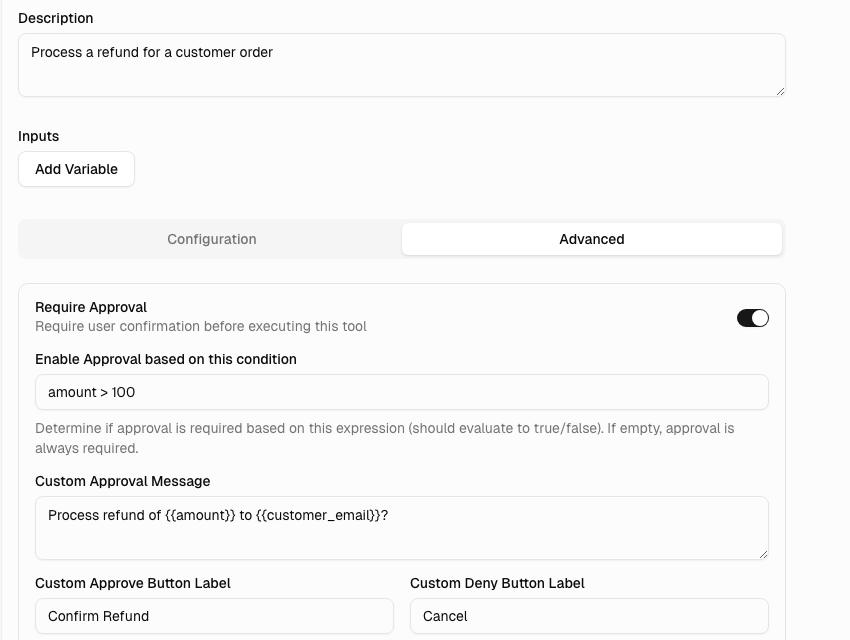
Enable Tool Approval in the tool's settings under the Approval section.
| Setting | Description |
|---|---|
| Require Approval | Toggle to enable approval requirement for this tool. This is the only required field to enable approval. |
| Enable Approval based on this condition | Optional expression to conditionally require approval (e.g., amount > 100). When empty, approval is always required. |
| Custom Approval Message | Override the default message shown to users when requesting approval. |
| Custom Approve Button Label | Override the default "Approve" button text (e.g., "Confirm Refund") |
| Custom Deny Button Label | Override the default "Deny" button text (e.g., "Cancel") |
Writing Effective Approval Messages
A good approval message helps users make informed decisions. Use {{variable}} syntax to include tool parameters:
Process refund of {{amount}} to {{customer_email}}?Include:
- What action will be taken
- Key parameters using template variables (amounts, recipients, affected records)
- Any important consequences or timeframes
User Experience
When a tool requires approval, the chat interface displays a confirmation dialog:
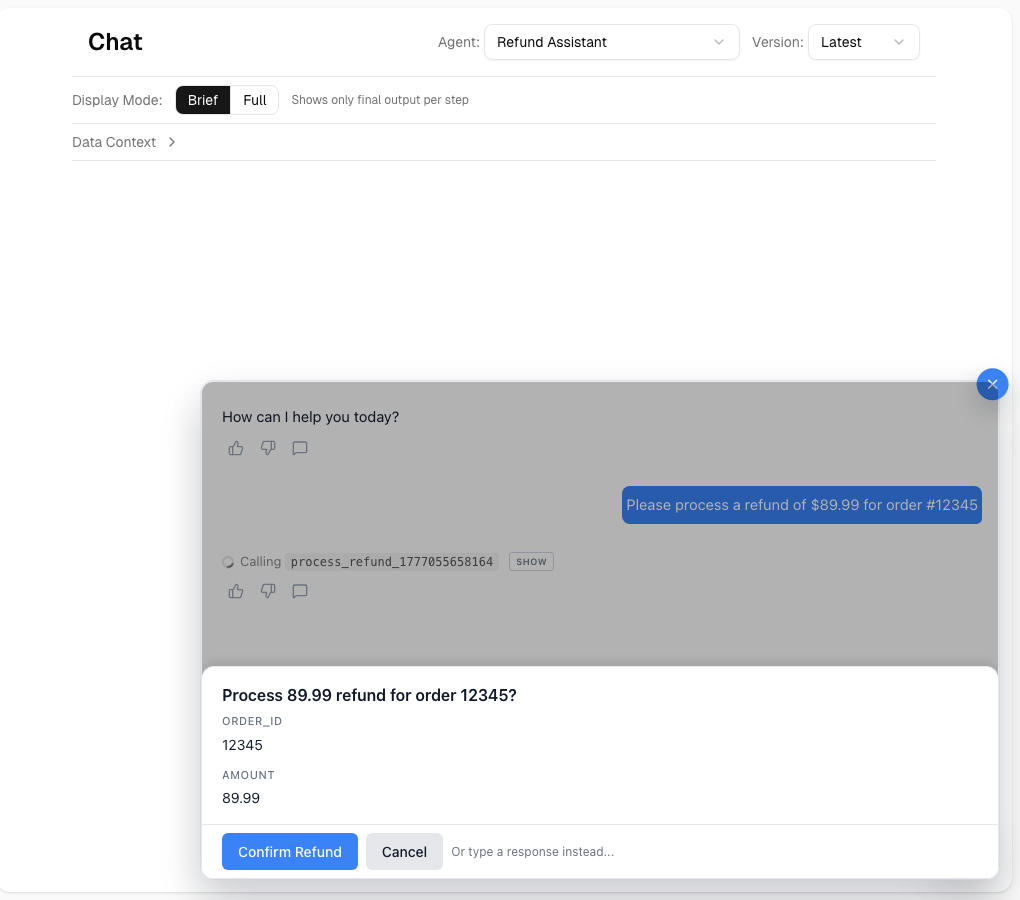
The dialog shows:
- Approval message — Your custom message (if configured) or a default message "Approve 'abc' execution?".
- Parameters — The exact values that will be passed to the tool
- Approve/Deny buttons — Custom labels if configured (defaults: Approve/Deny)
After Approval
If the user approves, the tool executes normally and the agent continues the conversation with the result.
After Denial
If the user denies, the agent receives feedback that the action was not approved. The agent can then:
- Ask clarifying questions
- Suggest alternative approaches
- Explain why the action was needed
Best Practices
Choose the Right Tools
Don't require approval for every tool. Focus on:
| Require Approval | Skip Approval |
|---|---|
| Write/update operations | Read-only queries |
| External API calls with side effects | Internal data lookups |
| Financial transactions | Search and retrieval |
| User-facing communications | Calculations and formatting |
Keep Approvals Focused
If users see too many approval dialogs, they may start approving without reading. Reserve approval requirements for genuinely sensitive operations.
Provide Context
Use the approval message to give users the information they need. Generic messages like "Approve this action?" aren't helpful. Specific messages like "Send invoice #1234 for $500 to customer@email.com?" let users verify the details.
Test the Flow
Before deploying, test the approval flow from the user's perspective:
- Trigger the tool through natural conversation
- Review the approval dialog for clarity
- Test both approve and deny paths
- Verify the agent handles denial gracefully
Use Cases
Financial Services
A banking assistant can check balances and transaction history freely, but requires approval before initiating transfers:
Agent: I can transfer $500 to your savings account. Would you like me to proceed?
[Approval dialog appears with transfer details]
User: [Approves]
Agent: Done! The transfer of $500 to your savings account is complete.
Customer Support
A support agent can look up orders and track packages, but needs approval before issuing refunds:
Agent: I found your order #12345. The item arrived damaged, so I recommend a full refund of $89.99. Should I process this?
[Approval dialog shows refund amount and order details]
Data Management
An admin assistant can query records freely, but requires approval before bulk updates:
Agent: I found 47 inactive accounts from before 2020. I can archive these to clean up your database. This action will move them to the archive and they won't appear in regular searches.
[Approval dialog shows count and archive action]